
What SPECTACLE is
SPECTACLE is the LensCowboy client review surface. You build a playlist of renders from PAL or 2D, invite your client by email, and they scrub the cuts in their browser with a real player UI — transport bar, frame counter, A/B compare, fullscreen. No app installs, no Drive permission requests, no friction.
Two distinct user surfaces:
- Owner page — you (the operator) manage clients + playlists
- Viewer page — the client signs in via magic link and watches
First-time setup
- Open Settings → find a slot bound to a project → click the cyan SPECTACLE pill on that slot row.
- The SPECTACLE owner page opens for that project.
- Type your client's email, click Send invite. They receive a magic-link email immediately.
- Add at least one render to a playlist (see Playlists below).
- Client clicks the email link, lands on the viewer, and sees the playlist.
From PAL or LCBE, the same destinations are one click away — both toolbars include a cyan Spectacle link that opens the owner page with the active project pre-selected.
Manage clients and playlists
Project picker
Open the owner page without a project pre-selected and you get a picker showing every project you own.
Inviting clients
Type an email, optionally a display name, click Send invite. Re-inviting the same email is idempotent: if the client already exists, the magic link is just re-sent.
Revoking access
Click the red Revoke button on any client row. The client is logged out shortly after and can no longer access the project.
Building a playlist
Each project can hold up to 10 playlists, each up to 50 items. The New playlist section has three tabs:
- Recent renders — PAL renders for this project, newest first.
- Drive browser — navigate the project's Drive folder tree to pick anything else (manually-uploaded cuts, 2D outputs, external edits).
- Paste Drive ID — for the rare case where you have just the file id.
Selected items appear in a draggable table at the bottom of the panel. Drag the rows to reorder before clicking Create playlist.
Editing existing playlists
Playlists support delete and append. To reorder items, recreate the playlist with the new order.
What your client sees
The client lands on a topnav with a project picker, a sidebar of playlists, and a player pane. The first playlist auto-loads and the first item starts playing — zero clicks to first frame.
They never see the owner page, the SPECTACLE backend, your other projects, or anything outside the playlists you've shared.
Transport, scrubber, A/B compare
Transport bar
Custom scrubber with hover-to-seek, drag-to-scrub, and chapter markers per playlist item. Frame counter (current / total at 24 fps), playback rate selector (0.25 / 0.5 / 1 / 1.5 / 2×).
Loop region
Press I to mark loop in at the current frame, O
for loop out. The loop runs immediately on play.
Shift+I / Shift+O clears
either, or hit the ⌧ button.
A/B compare
Press C or click the A/B button. The player splits into two synced viewports. Default B is the next item; click any thumbnail in the strip to set B explicitly. B mirrors A's play state and rate, stays in sync, runs muted.
Fullscreen presentation
Press F or click Present. Hides sidebar + topnav, requests native browser fullscreen. Esc exits.
Keyboard shortcuts
Press ? at any time to see the full list inside the viewer. Modifier-aware: Ctrl+C still copies, Cmd+L still hits the URL bar, etc. Shortcuts only fire on bare keys (Shift is a valid modifier for ±5-frame skip and clear-loop).
| Key | Action |
|---|---|
| Space / K | Play / pause |
| J / L or ← / → | Step 1 frame |
| Shift+arrow | Step 5 frames |
| Home / End | Jump to start / end |
| I / O | Set loop in / out |
| Shift+I/O | Clear loop in / out |
| N | Start a new note (drag a region or click for a point) |
| Enter / P | Next / previous item |
| F | Fullscreen presentation |
| C | Toggle A/B compare |
| 1-9 | Jump to playlist item N |
| Esc | Exit fullscreen · cancel note mode · close help |
| ? | Toggle this help |
Frame notes · regions · resolve workflow
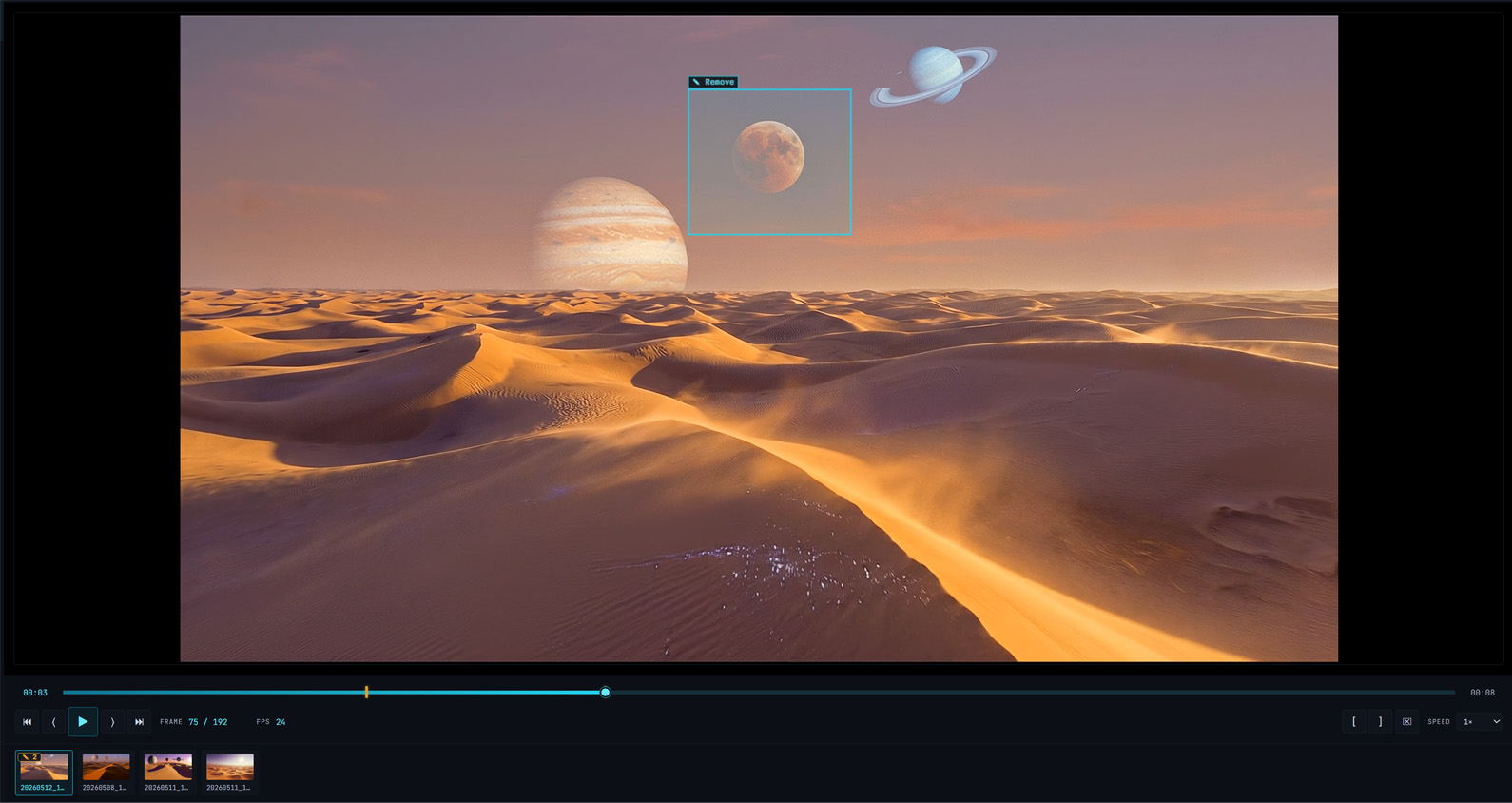
Annotations let a reviewer (client or owner) leave timecode-anchored notes on any clip or image in a playlist. Notes can be a point (click a spot at a frame), a region (drag a rectangle to bracket a part of the frame), or just a timecode comment without a spatial pin (region/point optional on click).
Creating a note
- Press N or click the ✎ Note button in the player tools. The cursor becomes a crosshair.
- Either drag a rectangle on the frame (= region note) or click a single point (= point pin). The current playhead time becomes the note's anchor frame.
- A modal asks for the note body. Type a sentence or paragraph, click Save note.
- The cyan rectangle or pin appears on the canvas with the body preview in a label badge; an amber marker lands on the scrubber at the anchor frame.
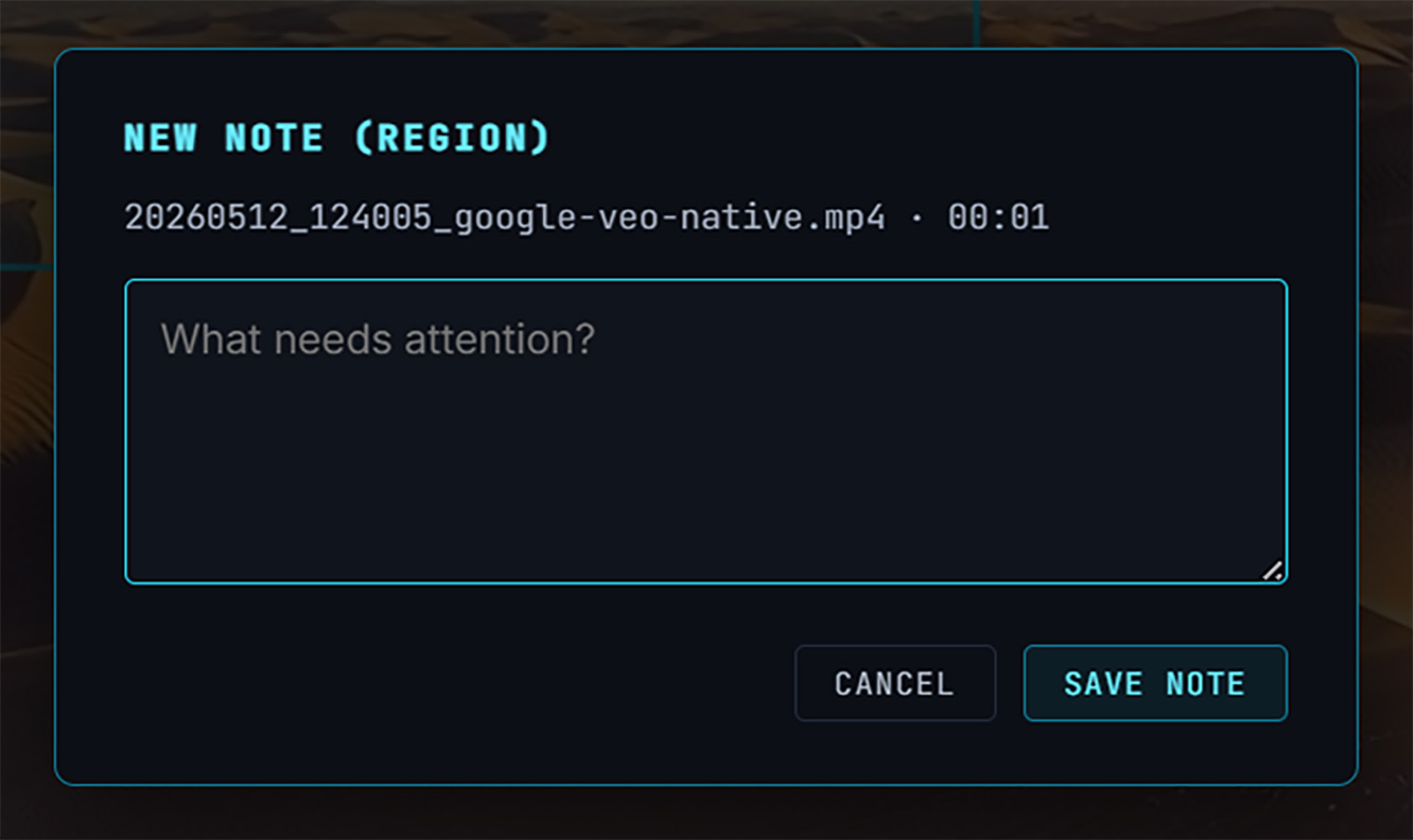
How the rectangle behaves on playback
Annotations are anchored to a specific frame. The rectangle (or point pin) and its body-preview badge fade in as the playhead approaches the anchor frame and fade out as it moves away — visibility window is ±1 second around the anchor for regions, ±0.5 second for points. The amber scrubber marker is always visible so reviewers can navigate to notes from anywhere in the clip.
Image annotations (notes on still images) stay fully visible since there's no timeline.
Reviewing & resolving
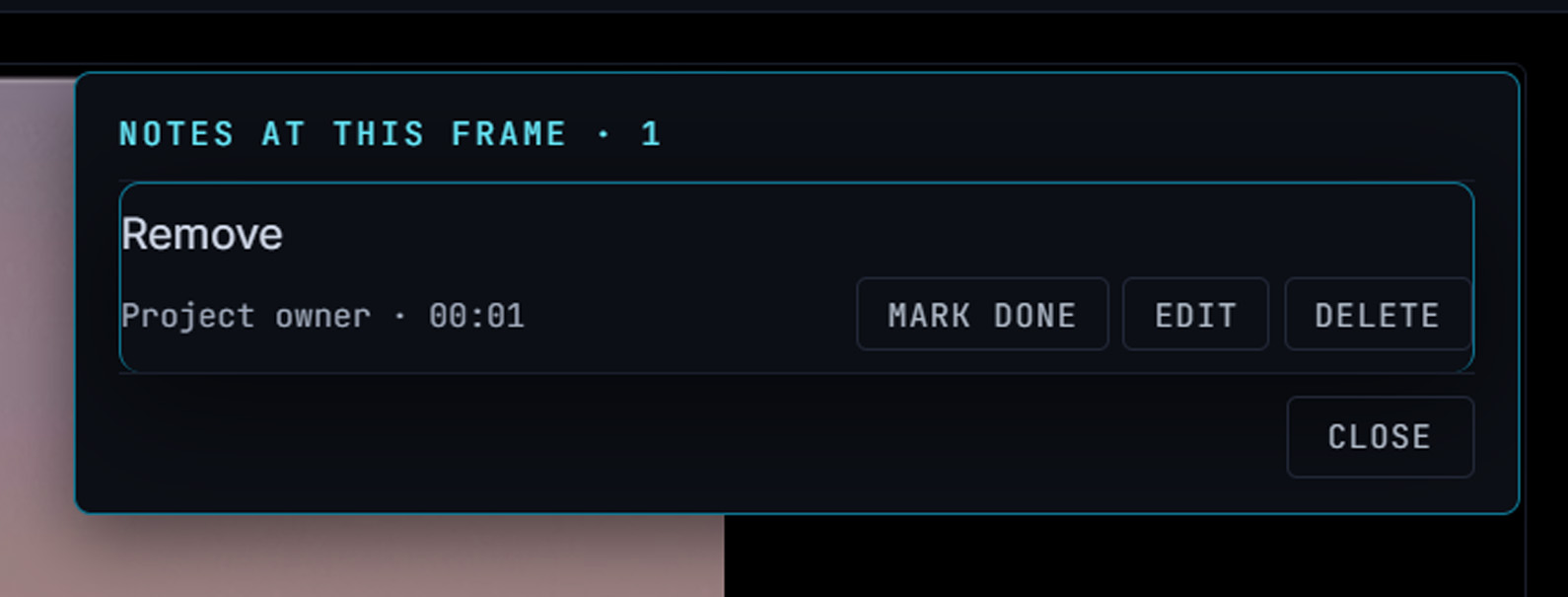
Click any existing rectangle, pin, or scrubber marker. A popover opens with the full body, author, timecode, and four actions:
- Mark Done — flips the note to resolved (green tint). The button label becomes Reopen. Either the author, the owner, or anyone with edit rights on the note can resolve.
- Edit — swaps the body for an inline textarea so you can refine the wording. Save commits, Cancel discards.
- Delete — permanent. Owners can delete any note; clients can only delete their own.
- Close — dismisses the popover without changing anything.
Strip count badges
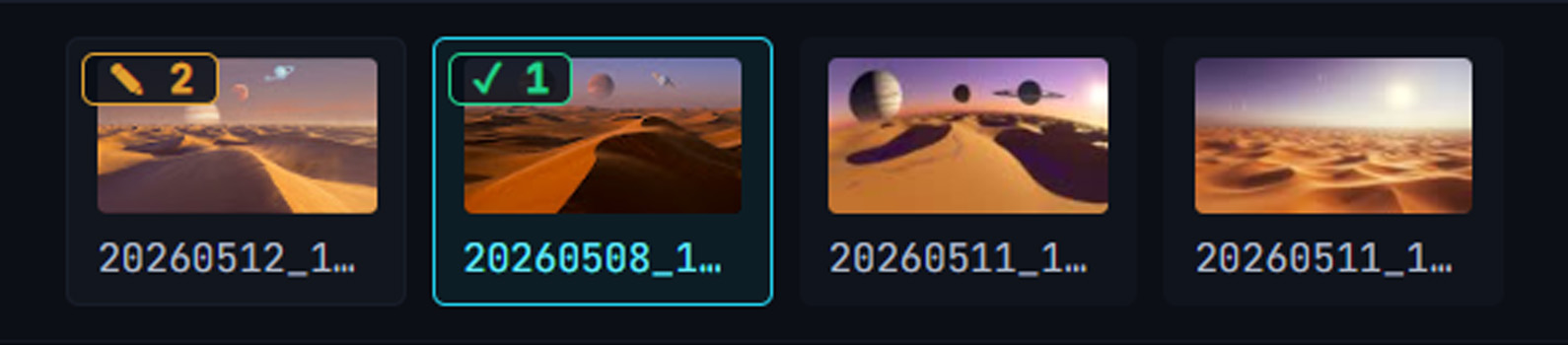
Every playlist item in the strip below the player shows a count badge in its top-left corner whenever it has notes:
- ✎ 3 — amber, “3 open notes”.
- ✓ 2 — green, “all notes done” (only shows when every note on the item is resolved).
Tooltip on the badge breaks down open vs done counts. Lets a reviewer scan a long playlist and see exactly which clips need attention.
Permissions — who can do what
| Action | Client | Owner (you) |
|---|---|---|
| Create a note on any file they can see | Yes | Yes |
| Edit body / region / timecode of own note | Yes | Yes |
| Edit body of another's note | No | Yes |
| Mark any note Done / Reopen | Yes (collaborative) | Yes |
| Delete a note | Own only | Any |
Resolve is intentionally collaborative — a director can mark a cinematographer's note as Done once the fix lands, without needing to ping them to do it themselves.
From LCBE
Clicking a shot artifact (starting frame, generated video, etc.) in LCBE opens the SPECTACLE viewer in an iframe slide-over with the same annotation surface. LCBE passes the project id automatically; notes attach to the same project as everything else in the dashboard.
Cross-surface flow — LCBE and standalone
Annotations are saved per project, not per surface. A note you leave on a shot from inside LCBE is the same note your client sees when they open the standalone SPECTACLE viewer on a playlist containing that file — and vice versa. There's no copy, sync, or "publish" step; both views read and write the same set of notes.
The one constraint to know about: the standalone viewer only shows files that have been added to a playlist for the project. Two patterns follow from that:
- For client review: add the file to a playlist. Anything you want a client to see and comment on must live in a playlist they have access to. Once it's there, notes flow freely in both directions and the strip thumb shows count badges.
- For LCBE-internal notes: annotate freely from the LCBE iframe viewer on any shot artifact — starting frames, intermediate renders, generated videos, etc. The notes are saved and remain visible to anyone opening that file from LCBE again, even if the file isn't (yet) in a SPECTACLE playlist.
Adding a previously-LCBE-only file to a playlist later doesn't lose any notes — the count badge appears on the strip thumb the moment the playlist refreshes, and clients can pick up the conversation from there.
Range-select on the strip · per-playlist lock
Clients with download permission can grab one file at a time via the ⬇ Download button in the player tools, or multiple files at once via the strip.
Batch download
- Shift-click any clip thumbnail in the strip — it gets a cyan check.
- Shift-click another thumbnail — everything between the first click and this one is selected (range fill).
- Plain click any thumbnail resets the anchor; the next shift-click starts a fresh range.
- The floating Download selected bar appears at the bottom of the player when at least one clip is selected. Click it.
- SPECTACLE streams a
.ziparchive of every selected file back to the browser; download starts as soon as the first file is in.

Per-project download permission
Default off — clients can watch but not download. Enable it on the owner page's Preferences tab per project. Plan- gated: requires Studio tier or higher.
Per-playlist lock override
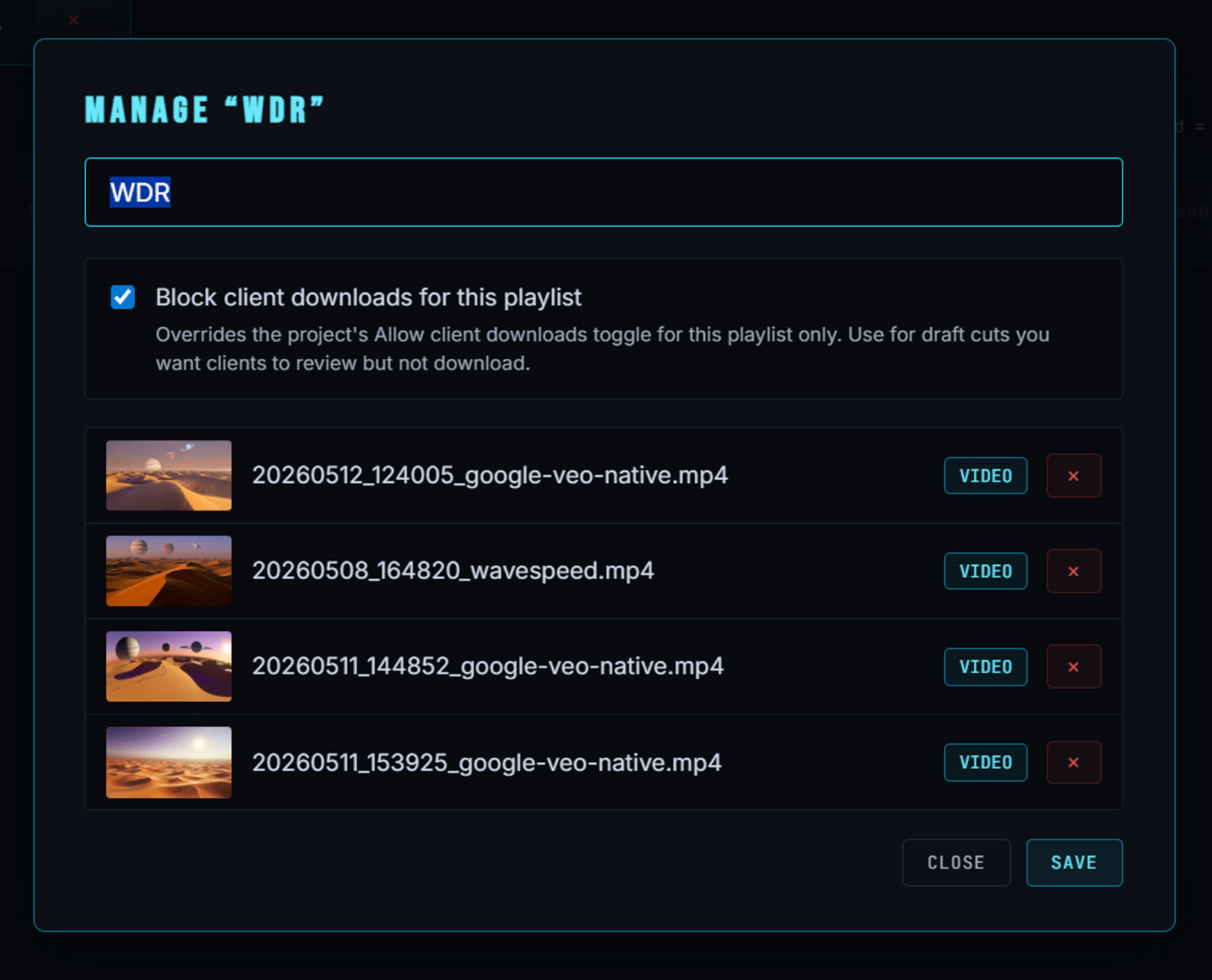
Even with project-level downloads on, you can lock individual playlists against download. Useful for sharing a quick WIP cut alongside a downloadable approved deliverable in the same project.
- Open Playlist Manager on the owner page.
- Tick the Block client downloads checkbox on any playlist.
- A red 🔒 lock badge appears on that playlist tile. Clients viewing the playlist won't see the Download button or batch-download bar at all.
| Resource | Cap |
|---|---|
| Playlists per project | 10 |
| Items per playlist | 50 |
| Clients per project | Plan-gated (Creator: 2, Influencer: 5, Pro+: 10) |
| Magic-link expiry | Short window — single-use |
| Client session | Auto-expires; refresh by re-clicking the magic link |